How to Add a New Property
Adding a new property
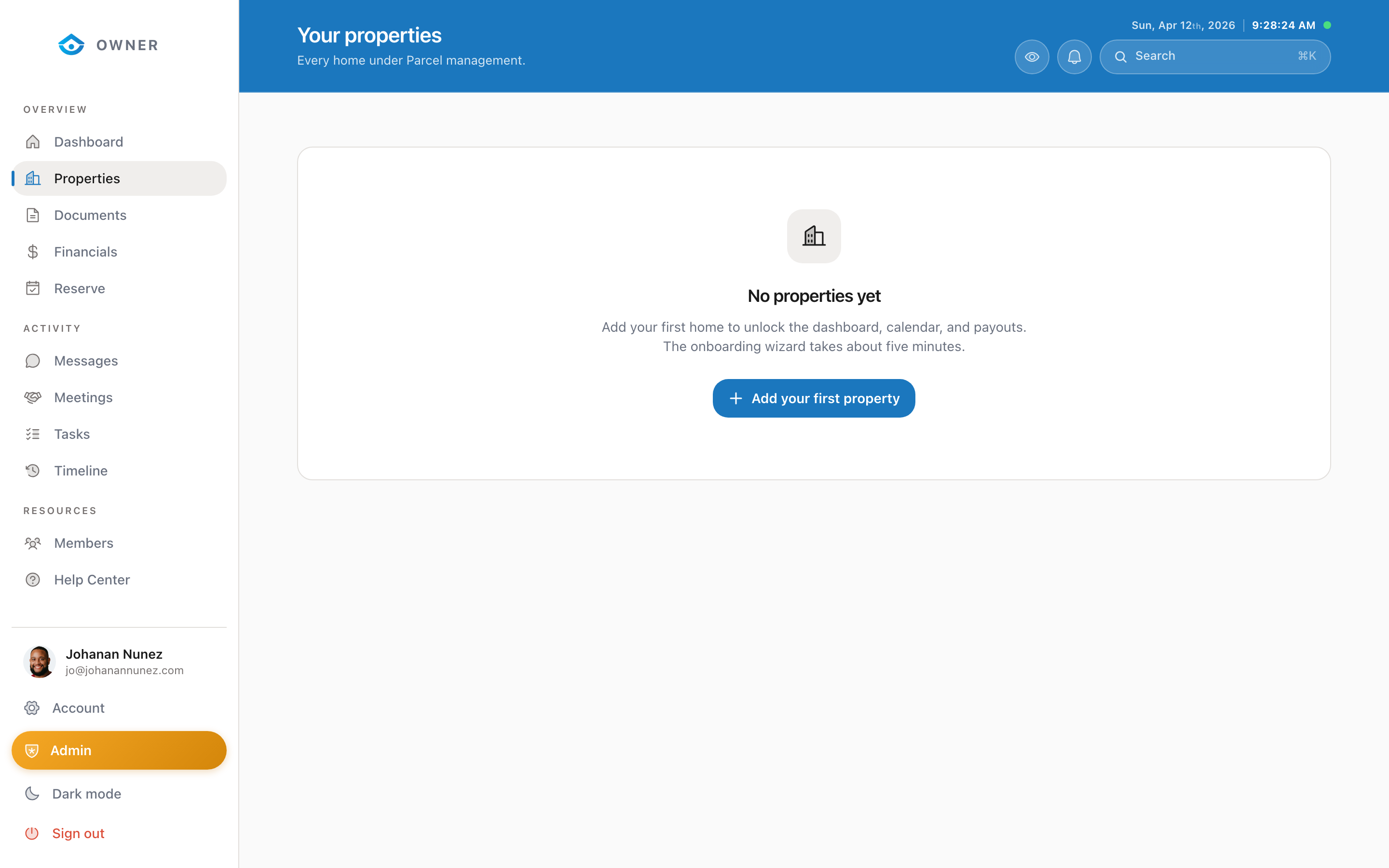
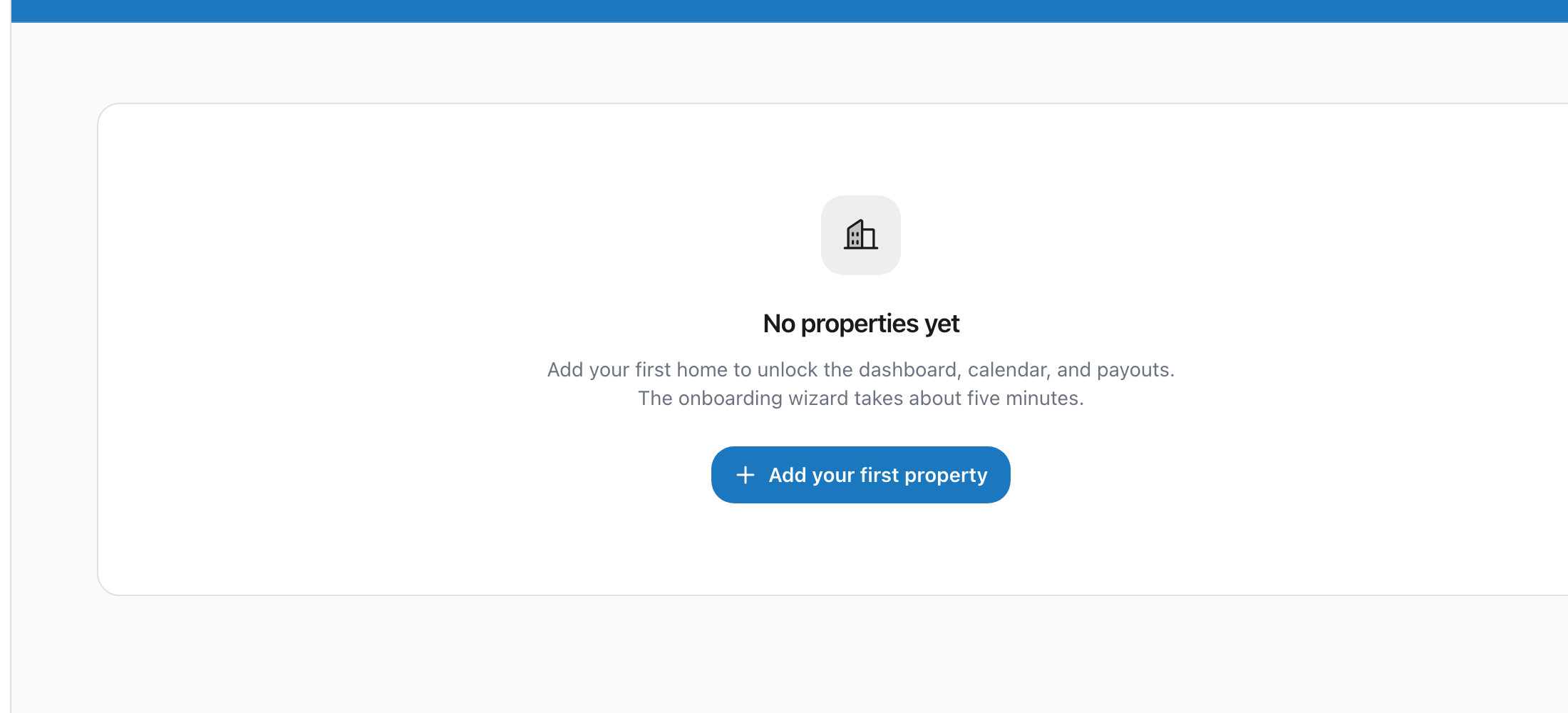
To add a new property to your Parcel account, you will go through our setup wizard.
Starting the process
1. Go to your Properties page 2. Click the Add Property button 3. You will be taken to the setup wizard
Alternatively, go directly to your Setup page from the sidebar navigation.
What you will need
Before starting, gather the following:
- Property address
- Basic property details (bedrooms, bathrooms, square footage)
- Property photos (at least 5 high-quality images)
- WiFi network name and password
- Any house rules you want to set
- Your payout bank account information
- A government-issued ID for identity verification
- Your W9 form (for tax purposes)
The setup wizard
The wizard walks you through each step: 1. Welcome and overview 2. Account information 3. Identity verification 4. Property address 5. Basic details (type, size, capacity) 6. Space description 7. Amenities 8. Photos 9. House rules 10. Cleaning preferences 11. WiFi details 12. Financial information 13. Compliance documents 14. Payout setup 15. W9 tax form 16. Recommendations 17. Host agreement signing 18. Final review
How long does it take?
Plan for about 15 to 20 minutes. You can save your progress and come back later; the wizard auto-saves as you go.